
More than a video call. A classroom built around the way you teach
Meet SuperTeacher Classroom: Your Interactive Space for Online Teaching
Bring your lessons to life with an interactive whiteboard, customizable learning activities, lesson-building tools, screen sharing, and personalized student workspaces. Prepare your materials, teach live, and keep your teaching business connected — all within SuperTeacher.

“Forget generic video apps. The new SuperTeacher Classroom was built by an actual educator who understands exactly what independent teachers need. After 2+ years of using SuperTeacher for my admin, this custom-built classroom is the ultimate upgrade for delivering flawless online lessons.”

Gemma ünlü
Founder – Teacher Gemma
Why SuperTeacher classroom
Online Teaching Needs More Than a Video Call
You’ve probably been there.
You’re explaining something on a video call, switching tabs to find an activity, opening another website for a game, sharing your screen, and trying to keep your student involved along the way.
It works. But it isn’t always the smoothest way to teach.
A virtual classroom should do more than connect people through video.
It should give you room to explain ideas visually, create opportunities for participation, adapt activities to your students, and prepare lessons without rebuilding everything each time.
That’s the thinking behind SuperTeacher Classroom.
A teaching space where your tools, activities, and lesson materials work together — so you can focus on the learning experience rather than managing a collection of separate windows.
Four Ways to Teach. One Classroom.
Different lessons call for different approaches.
Sometimes you need a whiteboard. Sometimes you want to work on a piece of writing, demonstrate something on your screen, or explore a website together.
SuperTeacher Classroom gives you the flexibility to choose the right environment for the lesson.
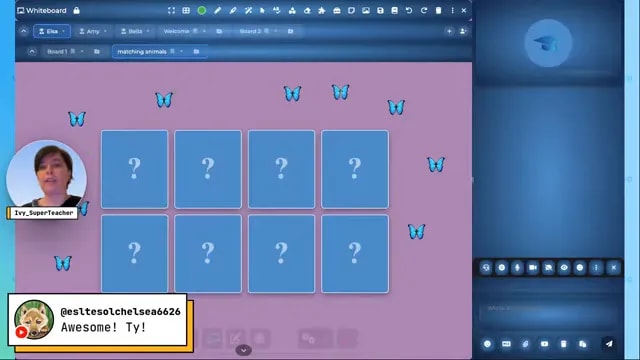
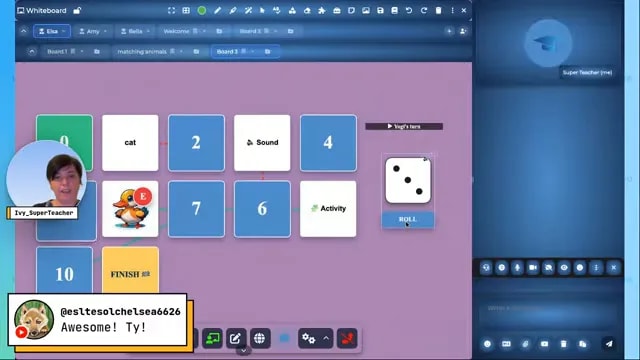
Explain it. Show it. Make it interactive.
Use a flexible digital whiteboard to build visual explanations, introduce new concepts, and give students opportunities to participate.
Write, draw, highlight, arrange objects, and combine text, images, sounds, and interactive activities on your boards.
Whether you’re explaining grammar, solving a problem, practicing vocabulary, or building a visual learning activity, the whiteboard gives you a space to make ideas easier to understand.
What you can do:
- Write, draw, erase, and annotate.
- Add shapes, text, and visual elements.
- Create and use interactive learning activities.
- Organize content across multiple boards.
- Build and save lessons for future use.
- Prepare different boards for individual learners.
Teach visually. Make room for participation. Keep your lessons flexible.
Make writing and text-based lessons a shared experience.
Some lessons are better suited to words than whiteboards.
Switch to the Text Editor when you want to focus on writing, sentence construction, explanations, or text-based exercises.
Work with your students on written content during the lesson, using a dedicated space for reading, writing, and reviewing ideas together.
Great for:
- Writing practice and sentence correction.
- Grammar explanations and examples.
- Reading comprehension.
- Vocabulary development.
- Collaborative writing tasks.
- Structured lesson notes.
Move between visual and text-based teaching as your lesson requires.
Bring the resources you already use into the lesson.
Have a presentation, website, worksheet, or application you want to show your student?
Share your screen and use annotation tools to draw attention to important details, explain a concept, or guide students through the material.
It’s a practical way to make external resources part of your live teaching experience.
Use it to:
- Present lesson slides and visual resources.
- Demonstrate software or websites.
- Explain diagrams and exercises.
- Highlight important information.
- Work through existing teaching materials.
You don’t have to abandon the resources you’ve already created.
Explore online content together, not just side by side.
Sometimes screen sharing isn’t enough.
With SuperTeacher’s optional Co-Browser, you can open web content in a shared browsing environment and explore it together with your students.
Instead of relying only on what one person shows on their screen, co-browsing creates opportunities for more hands-on interaction with supported web content.
Use it for online resources, interactive websites, and guided browsing activities.
Ideal for:
- Exploring educational websites together.
- Working through online activities.
- Guided research and web-based lessons.
- Demonstrating online resources.
- Interactive learning experiences beyond traditional screen sharing.
Co-Browser is an optional paid add-on and includes a 14-day trial.
“Fantastic, I wouldn’t want to use any other app! It is all inclusive, allowing you to sell and schedule lessons, check your earnings and teach, and much more. “

Teacher Emma
Founder of Explore English with Emma
Streamline Your Edu Business with SuperTeacher!
Get your education business up and running quickly with our powerful, scalable web app designed to drive your teaching, tutoring, mentoring, coaching or creator business growth effortlessly.