Teaching online should be about teaching. Not juggling five tabs, hunting for the activity you prepared yesterday, or trying to remember where you left off with the student who is joining in thirty seconds.
That is the idea behind SuperTeacher Classroom: less tool switching, more teaching.
I built it around the things I needed during more than twelve years of teaching online, along with the frustrations, suggestions, and real classroom experience shared by fellow educators. It brings preparation, interactive teaching, student materials, and reusable lessons into the same home base you use to run your independent teaching business.
And while the classroom is exciting on its own, its biggest value is how it fits into the whole SuperTeacher ecosystem.
Key Takeaways
- The Prep Room carries your private preparation into class, reducing setup and tool switching.
- Student-specific boards and reusable lessons help you personalize teaching without rebuilding materials.
- Four teaching modes support interactive activities, shared writing, web resources, and annotated screen sharing.
Table of Contents
- Why a Classroom Belongs Inside Your Teaching Home Base
- Prepare Privately, Then Enter Class With Everything Ready
- Make the Classroom Fit the Way You Teach
- Teaching Mode One: An Interactive Whiteboard
- Turn a Board Game Into a Whole Lesson
- Use Anagrams and Crosswords for Focused Practice
- Build a Personal Learning Space for Each Student
- Add Rewards and Useful Widgets Without Overcomplicating Class
- Teaching Mode Two: A Text Editor With Private Notes
- Teaching Modes Three and Four: Co-Browsing and Screen Sharing
- Manage Participation, Recordings, and Connection Issues
- How SuperTeacher Classroom Fits With Your Membership
- You Can Still Use Zoom, Google Meet, or Another Classroom
- Less Tool Switching, More Teaching
Why a Classroom Belongs Inside Your Teaching Home Base
When I moved from teaching with companies and marketplaces to working independently, I had to figure out much more than how to deliver a good lesson. Some companies had shut down overnight, and suddenly everything they used to handle was my responsibility.
Keeping in touch with parents. Self-marketing. Finding materials. Choosing a classroom. Managing bookings and payments. Creating a professional learning experience. Remembering what happened with each student. On repeat.
If you teach independently, you probably know that list very well.
I loved teaching, but the non-teaching side of the business could become exhausting. SuperTeacher grew out of that experience: taking the parts that worked well inside teaching companies and making them available to independent educators, without taking away their flexibility.
The classroom completes that workflow. Your teacher page, class listings, bookings, sales, schedule, and teaching space can now live within one system. Whether you are preparing to go independent or already growing your business, the goal is the same: set things up once, keep building on your work, and spend more energy on your students.
Prepare Privately, Then Enter Class With Everything Ready
The first classroom feature you will notice in your schedule is the Prep Room.
This is your private preparation space. Students cannot join you there, and whatever you prepare carries into the corresponding classroom when you enter the lesson.
That sounds simple, but it removes a surprising amount of work.
Think about the usual process of preparing an interactive activity. You might open a separate website, log in, create a game, save it, copy its link, open your video-call tool, and then decide whether to share your screen or send the link. Even after all that, the student may not be able to interact with it directly.
There is nothing wrong with using a resource such as Wordwall. I have used it a lot myself. The problem is the number of steps between having an idea and actually teaching with it.
Inside the Prep Room, you can build your boards and activities where you will use them. When class begins, your preparation is already waiting for you.
It also gives you space to experiment without a student looking over your shoulder. During a live lesson, the activity-building interface stays out of the student’s view, and students can continue working on an assigned activity while you prepare the next one.
Make the Classroom Fit the Way You Teach
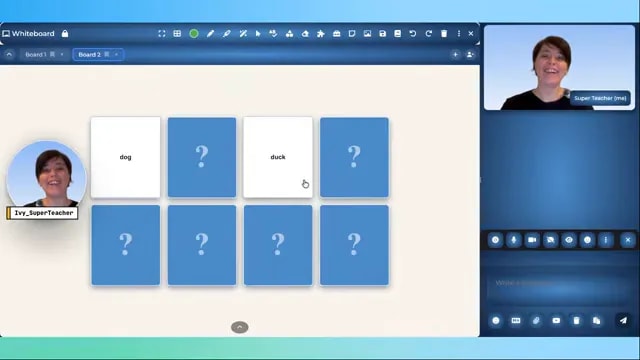
The default classroom layout is familiar: a whiteboard, video feeds, and classroom tools. But you do not have to keep everything in its default position.
- Move the video sidebar to the left or right.
- Show or hide the chat.
- Hide the annotation toolbar for a cleaner workspace.
- Adjust board backgrounds, colors, and patterns.
- Set a virtual background when entering the classroom.
I get visually overwhelmed quite quickly, so a clean teaching space matters to me. You should not have to stare at every available tool for the entire lesson.
Use shortcuts instead of constantly reaching for the toolbar
The annotation tools have keyboard shortcuts, which you can find by hovering over the tools or opening the shortcut list in the classroom menu.
For example, T opens typing, S switches to selection, and H opens the highlighter. Once those movements become familiar, switching between writing, selecting objects, highlighting, and erasing becomes much smoother.
You can then hide the toolbar without losing access to the tools you use most.
Teach in different languages
At launch, the classroom interface supports 16 languages. Teachers and students can personalize their interface language in settings, including the main tools and commands.
That is separate from your lesson content, which you create around the language and subject you teach.
Teaching Mode One: An Interactive Whiteboard
The whiteboard is much more than a place to write over slides. It includes interactive activity builders that let you approach the same learning goal in different ways.
This matters because repetition and variety are not opposites.
A student might need to practice the word “elephant” several times. That does not mean you need to ask them to repeat it in exactly the same way for twenty-five minutes. You can work on recognition, pronunciation, spelling, listening, and recall through different activities.
The classroom offers at least fifteen activity types, including:
- Reveal boxes for hiding and uncovering words or images.
- Matching pairs and memory match.
- Flashcards.
- Unjumbling words or sentences.
- Anagrams for spelling practice.
- Group sorting.
- Quizzes and spinning wheels.
- Crosswords.
- Hangman-style spelling games.
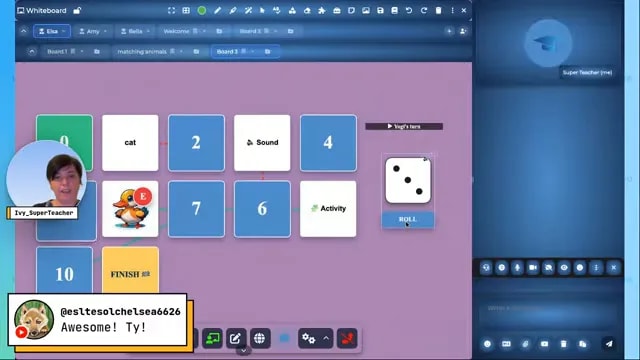
- Board games that combine other activities.
The important part is not simply having a long list of games. It is being able to create something useful quickly, including during a lesson when you notice that a student needs a different approach.
Combine text, pictures, and audio
Depending on the activity, you can combine text, images, and audio rather than relying on one type of prompt.
For example, an animal memory game might include:
- The word “dog” paired with a picture of a dog.
- A word paired with the same word for recognition practice.
- A recording of you saying “duck” paired with its written form.
You can record short audio prompts directly while building an activity, then add the finished game to the current board or a new one.
The resource library provides assets such as images and stickers to help with this. At launch, that library is still growing. Its purpose is to give you useful building blocks, rather than force you into a fixed, finished lesson.
Keep control of student interaction
Student interaction is locked by default. You decide when to unlock the whiteboard and what students can do.
Being able to play an activity does not mean a student needs permission to edit its underlying content. The classroom separates participation from editing access, so you can let students work without handing over every control.
Build a Personal Learning Space for Each Student
One of the things I missed most in other classroom tools was a clear way to keep building each student’s learning experience without losing track of their work.
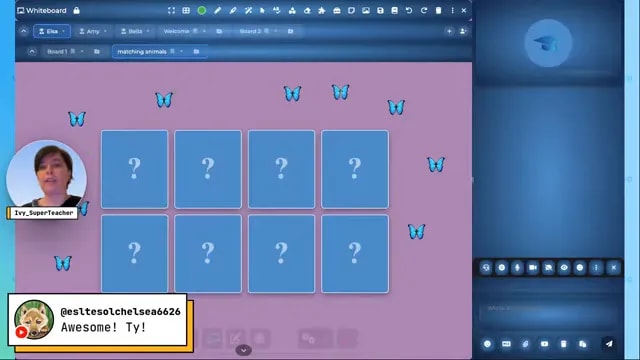
In SuperTeacher Classroom, you can create named student spaces with their own boards. Each student can have multiple boards, and you can rename them to make the lesson structure easier to follow.
You can also personalize the appearance. One student might enjoy a purple background. Another might benefit from a grid for math work. Board patterns and colors can be adjusted to suit the task or the student.
These may seem like small details, but especially with children, having a space that feels like theirs can mean a lot.
Save individual activities or complete lessons
There are two useful ways to save what you build:
- Save a single board as an activity when you want to reuse that piece on its own.
- Save multiple boards as a lesson when you want to reuse the whole sequence.
Think of the boards as slides in a lesson. If you create five animal-themed boards for one student, you can save them together, then load that lesson into another student’s space when it fits their level.
The goal is to build your library as you teach, not to keep redoing work you have already done.
Reduce clutter between back-to-back classes
You can hide the student spaces you are not currently using. When one student finishes and another arrives, bring the relevant boards into view rather than keeping everything visible.
This is particularly helpful with back-to-back lessons. A personalized classroom should help you feel organized, not leave you surrounded by everybody’s materials at once. And even better – bookmark board and pages per student so next time you turn into class, you know exactly where to pick up from. Neat, right?
Add Rewards and Useful Widgets Without Overcomplicating Class
I deliberately did not build one rigid reward system. Teachers have different styles, and students respond to different things.
Instead, the classroom gives you several ways to create your own:
- Built-in feedback and small rewards within games.
- Stickers and sounds sent through classroom tools.
- An emoji-based stamp tool for placing rewards on a board.
- A dedicated student board that you can arrange as a reward collection.
- Stars assigned through the lesson feedback workflow after class.
A more specialized reward system, such as sticker books or dedicated reward boards, is something I want to shape with the community rather than decide alone. 👩🏫🧑🏻🏫
There are also practical widgets, including a customizable dice, a timer, and a simple calculator. Students can interact with appropriate tools, while controls such as pausing or resetting the timer stay with the teacher.
Teaching Mode Two: A Text Editor With Private Notes
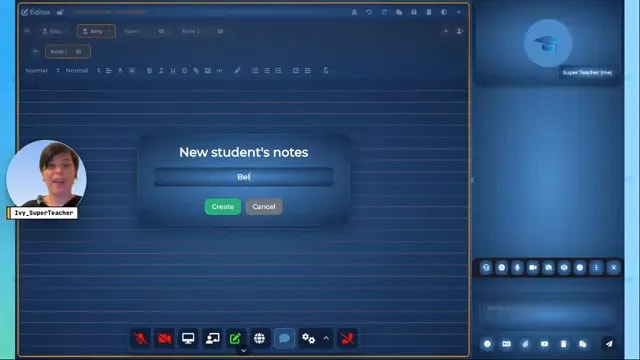
The text editor gives you a shared writing space, with student-specific boards similar to the whiteboard.
You can add images, use writing lines, adjust line spacing and colors, change backgrounds, or activate dark mode.
But the feature I especially wanted is private teacher notes.
While a student continues writing in the shared space, you can switch to your private notes and record what you are noticing. You might write that a student needs more practice spelling “mouse” and “small,” then return to the shared writing without exposing that note.
You can organize private notes by student and use checkboxes to track follow-up work.
That creates a practical teaching loop:
- Notice a difficulty during a writing task.
- Record it privately.
- Create a quick activity targeting that difficulty.
- Return to the skill later and update your note.
- Download it in a click of a button and share with your students.
For example, you could turn those two spelling difficulties into an anagram activity immediately, or use the monster-building hangman-style game for a different kind of practice.
Some game designs lean toward children, but the classroom itself is intended for both children and adults. You choose the tools and presentation that suit your learners.
Students can also save supported whiteboard or text-editor work. Depending on the mode, saving options include text, links, or PDF. Teacher notes can be saved separately when you want to turn selected information into something shareable, such as homework.
Teaching Modes Three and Four: Co-Browsing and Screen Sharing
You do not have to leave your existing teaching resources behind.
The classroom supports uploaded PDFs, subject to upload limits, along with images, pasted text, and recorded audio. For web-based resources, you can use either co-browsing or screen sharing.
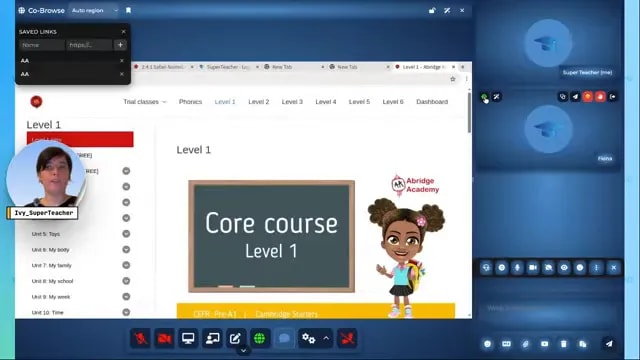
Co-browsing: work with web content together
The co-browser lets you and your students interact with web-based materials together. I use resources such as Abridge Academy and Epic Books, so keeping access to existing materials was important.
Students follow your navigation by default. When you enable their co-browsing permissions, they can interact with the web content. Annotation permissions let them circle, highlight, draw, or type over it.
You can save frequently used URLs in a personal link library, making it quicker to reopen the resources you use regularly, and organize your students tabs in groups, similar to how you build your students bank in our whiteboard and text editor mode.
Screen sharing: present materials with annotations
Screen sharing includes annotation tools too. Students can circle, type, draw shapes, highlight, and use the magic pen when you allow them.
The key difference is interaction with the underlying content. Annotating a shared screen does not let a student click buttons inside the website you are sharing.
SuperTeacher Classroom is browser-based. It does not provide the same remote mouse-control functionality as an installed application such as Zoom.
If your lesson mainly needs presentation and annotation, screen sharing may be enough. If students need to click and interact with a web activity themselves, build them within you teaching space and whiteboard, o use co-browsing as another relevant option.
Move video feeds into the teaching space
In all four modes, you can pop video feeds out and position them around the content.
This can be useful for dialogue, role play, or playful picture-based activities. Double-clicking returns a popped-out feed to the regular classroom view.
Manage Participation, Recordings, and Connection Issues
Give the waiting room something useful to do
You can customize the lobby with embedded content, such as a game or video. Students can engage with it while waiting to be admitted.
That makes the waiting room part of the learning experience rather than just an empty holding space.
Control participation
You can enable or disable student emojis and hand raising, depending on the lesson. That flexibility matters when a feature is helpful for one group but distracting for another.
Allow participants to record
When you enable participant recording, students receive a recording control. For a younger learner, a parent can help start it.
The recording is saved when they leave or are removed from class. This offers an alternative to the teacher recording, converting, compressing, and sending a file afterward. Recording is device dependent – it works on all types of desktops, laptops, and Android devices (including tablets and mobile), while following restrictions on other mobile devices.
See information that helps you troubleshoot
You can inspect microphone and camera status, network quality, connection information, and device or browser details.
You do not need to understand every technical measurement. A poor network indicator might simply help you suggest moving closer to the router. The information also gives support more context when you need help.
The classroom was tested across computers, tablets, Android and mobile devices, including the WeChat browser. I also teach students in China, where having a backup plan is particularly important. Compatibility testing does not remove every possible regional or network restriction.
How SuperTeacher Classroom Fits With Your Membership
SuperTeacher Classroom is included in all three current SuperTeacher plans, becoming the last missing piece of the puzzle called running an independent online teaching, tutoring, mentoring, and coaching business; SuperTeacher connects your teaching space with your edu page, offerings, booking system, sales, and schedule. Check out our membership levels for the applicable plan details and comparison.
Not sure which SuperTeacher membership suits your business needs best? Take this short quiz and find out instantly.
Co-browsing as an optional add-on
The co-browser uses a third-party service with its own cost, so I chose to keep it optional rather than make everyone pay for it – that way it is up to you and you, while keeping full access to the classroom and its other features.
At launch, it comes with a fourteen-day trial, followed by an optional add-on.
Existing members can try it before switching plans
If you have an older SuperTeacher membership, you do not need to switch blindly. Existing subscribers are invited to contact support for fourteen days of classroom access before deciding whether to move to a current plan.
I know some teachers have been with SuperTeacher for years. The point is to let you see what works for your teaching, not push you into changing something before you are ready.
You Can Still Use Zoom, Google Meet, or Another Classroom
Including a classroom does not mean removing your choice.
You can add a custom classroom URL in your profile settings. That link overrides SuperTeacher Classroom for your classes. Remove the custom URL, and the built-in classroom becomes the default for subsequent bookings.
Group-class listings also have their own classroom URL field. Leave it empty to use your default settings.
Importantly, you keep access to the Prep Room even if you use another tool for the video call. You can still build activities, organize student boards, and use those materials through screen sharing in your preferred calling tool.
Flexibility is the whole point. You can adopt the complete classroom workflow or use the parts that genuinely help you.
Less Tool Switching, More Teaching
When a SuperTeacher Classroom lesson ends, both you and your students are directed into the feedback workflow. Students can leave feedback through class history, creating a more direct transition from attending a lesson to reflecting on it.
That is the thinking behind the whole classroom: not just adding another place to make a video call, but connecting the small steps that make independent teaching manageable.
Prepare privately. Have your materials in class. Adapt when a student struggles. Keep useful notes. Save what you build. Reuse it without starting over.
The classroom will keep developing through teacher feedback, including suggestions for activities, widgets, and rewards. Dedicated guides in the SuperTeacher Training Center are intended to explain individual tools in more detail, while the classroom roadmap gives those ideas a place to grow.
I am excited about what this makes possible, but the goal remains very practical: a teaching home base that helps you show up ready, know where you left off, and focus on the work you love.
Check out SuperTeacher
Join 2,000+ Happy Educators – Start Teaching Independently Today!
Leave a Reply