

Welcome to the ultimate guide on using the Wordwall game builder for teachers. In this comprehensive walkthrough, we’ll explore how Wordwall can transform your teaching methods, making learning both interactive and enjoyable. Whether you’re a seasoned educator or just starting, Wordwall offers a plethora of features that cater to different teaching styles and subjects.
Why Wordwall is a Game-Changer
Wordwall is not just another educational tool. It’s a versatile platform that has gained immense popularity, especially for literacy and language learning. With over 51 million Wordwalls already created, it’s clear that educators worldwide are embracing this technology to enhance their teaching methods.
Wordwall offers a wide array of activities, from simple gap-fill exercises to complex matching games. It is suitable for various subjects, including language and math, making it a comprehensive tool for educators. The platform’s user-friendly interface allows teachers to create engaging games quickly, ensuring that students remain motivated and interested in the lessons.

Exploring Wordwall’s Activity Types
Wordwall boasts a vast collection of activity types, with over 30 game templates available for teachers to choose from. These activities cater to different learning objectives and can be customized to suit your classroom needs. Some of our favorites are :
- Fill In the Blank Activity: This is perfect for vocabulary building and comprehension check, where students drag the correct words into the blank spaces.
- Matching Games: Ideal for better retention of the new vocabulary words in a fun way.
- Quizzes : Perfect as a reward and review activity.
- Sentence Unscramble : Grammar practice has never been easier!
Creating these games with Wordwall is straightforward. For instance, in the fill-in-the-blank template, you simply write a description and the correct answer, and Wordwall does the rest. Wordwall also provides immediate feedback, helping students learn from their mistakes instantly, while letting you track your student’s progress and results on the Leaderboard.
Creating Your First Wordwall Game
To create a game, start by clicking on ‘Create Activity.’ Let’s take a simple example – the Random Wheel. This activity is excellent for ice-breaking sessions at the beginning of a course. Depending on your classroom / video conference tool’s interactivity, you can either screenshare or co-browse the wheel together with your students, spin it, and let your students discuss the selected topic.
Another quick activity could be matching countries with their capitals. You can add audio to enhance the learning experience. Wordwall allows you to generate audio and images for text or upload your own, making the game even more interactive and personalized to your students. You can then switch templates for a single game you create and reuse it many times – your students won’t even notice it’s the same!
You can customize the games settings even further, by adding countdowns or limiting the number of attempts. These elements introduce a competitive edge, motivating students to improve their performance.

How to Use Wordwall in the SuperTeacher Virtual Classroom
If you’re teaching online, you don’t need to limit Wordwall activities to homework or independent practice. You can bring them directly into your live lessons using SuperTeacher’s built-in virtual classroom.
One simple way is through screen sharing. Open your Wordwall activity in a browser tab, start screen sharing in SuperTeacher Classroom, and let your students follow along as you play.
For example, you could use a Random Wheel to choose speaking prompts, a matching game to review vocabulary, or a quiz to check understanding at the end of a lesson.
SuperTeacher’s screen-sharing annotation tools also let you highlight information and draw attention to specific parts of the shared screen while explaining an activity.Screen sharing works particularly well when you want to control the activity yourself while students participate verbally, make predictions, or discuss their answers.
Make Wordwall More Interactive with Co-Browsing
Want your students to do more than watch you play?
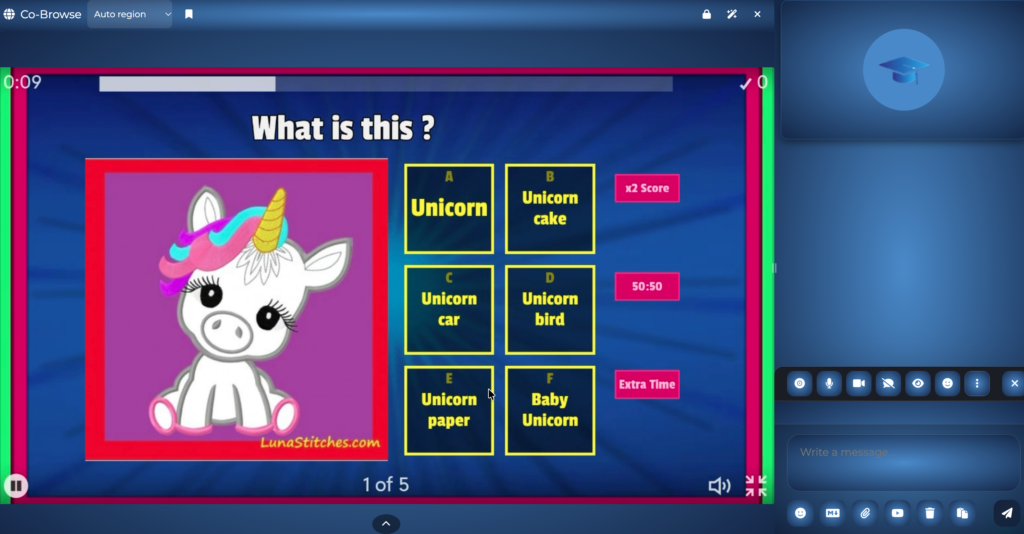
SuperTeacher Classroom also offers an optional Co-Browser, which lets teachers and students explore and interact with web-based content together during a live lesson. Instead of simply sharing your screen, you can open a Wordwall activity in the shared browser and let students participate more directly. This opens up useful possibilities for online lessons:
- Matching activities: Invite students to interact with vocabulary or picture-matching exercises.
- Random Wheel: Use the wheel to select speaking topics, questions, or classroom challenges.
- Quizzes: Work through questions together and discuss the answers as you go.
- Sentence Unscramble: Practice sentence structure collaboratively.
The difference is simple: screen sharing lets students watch your activity, while co-browsing can let them interact with it.
For activities that work well in a shared browser, co-browsing can make Wordwall feel more like a collaborative classroom experience rather than a teacher-led presentation.
Sharing Wordwall Activities with Students
Sharing your Wordwall games with students is seamless. You can set assignments, create deadlines, and even embed them in your teacher page. For in-class activities, you can use the QR code option for students to access games on their smartphones and tablets.
Embedding Wordwall games into your SuperTeacher page is very easy. Simply copy the embed code and paste it into our Digital Products Creator, allowing students to access the games anytime. Check out this short video guide to get set instantly. You can even sell your activities within your SuperTeacher Resource Library and self-paced courses – the sky is the limit! Here is our past Wordwall webinar replay for more inspiration on how you can add value to your class offer, make your current classes more interactive, or create new amazing products to upsell your services.
From Wordwall Activities to a Complete Teaching Experience
Interactive games are just one part of a successful online lesson. You also need a simple way for students to book their classes, access learning materials, and join you online.
That’s where SuperTeacher brings everything together.
You can manage bookings and class packages, share learning resources through your courses, and teach live in the built-in interactive classroom – where you can combine Wordwall activities with whiteboard tools, lesson materials, and other interactive activities.
Whether you’re teaching one-on-one or running group classes, the goal is to spend less time managing separate systems and more time focusing on your students.
Explore SuperTeacher’s Features

Utilizing Audio Features
Wordwall’s audio feature is a fantastic addition for language classes. You can generate audio for text or use tools like DigiRecord to record and upload your voice. This personalization makes the learning experience even more relatable and engaging for students.
To add audio, simply click on the audio option in Wordwall, choose to generate or upload, and integrate it into your game. This feature is particularly beneficial for pronunciation exercises and listening comprehension.

Quick Creation of Cloze Activities
Cloze activities are an effective way to test comprehension. With Wordwall, you can create these activities in seconds. Simply paste a text, select words to replace with gaps, and add distractor words to increase difficulty.
This feature allows you to create quick quizzes that assess your students’ understanding of a text, making it a valuable tool for formative assessments.

Expanding Your Wordwall Library
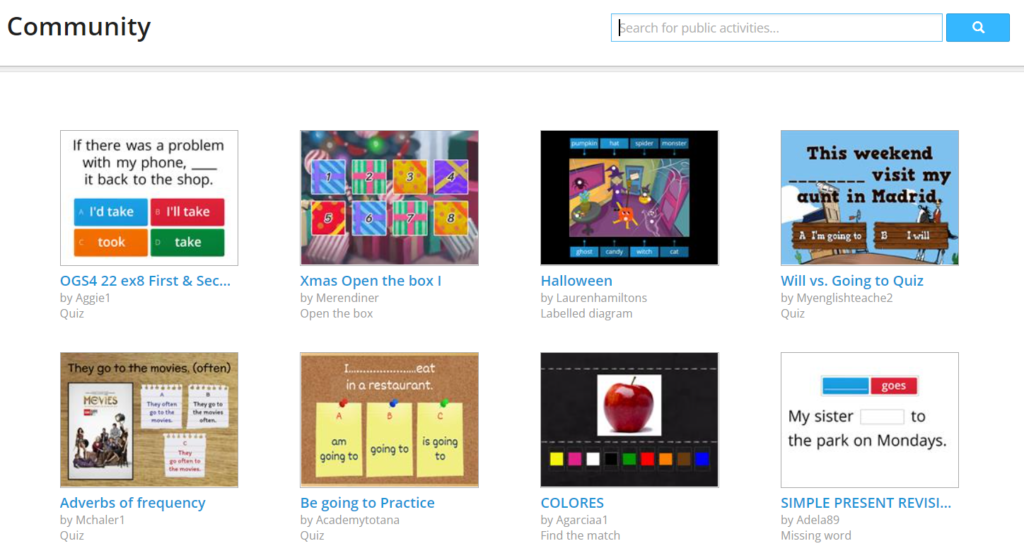
Wordwall’s community feature enables teachers to access games created by others. This sharing aspect saves time and provides inspiration for creating your own activities.
Simply search the community for relevant games, edit them, and assign them to your students. This collaborative approach ensures that teachers always have fresh content to engage their students.

Photo by Christin Hume on Unsplash
Free vs. Paid Plans
On Wordwall free plan you can create up to 3 activities by picking some of the 18 templates available. This is more than enough to get the feel of the tool and see if it works for you. You can then upgrade to either Standard or Pro subscription plan, which differ in the number of templates available. With Wordwall Pro plan you get unlimited access to the whole templates libary.
Leave a Reply